
Subathon timers are one of the most helpful tools you can use to make your livestream more engaging for your viewers. Every time a viewer subscribes, donates, follows your channel, or participates in any other supported action, it adds time to a running clock. They’re a great way to encourage your community to participate in working together towards shared goals which makes subathon events exciting and rewarding for everyone involved.
With Blerp, you can create fully customizable subathon timer and goal overlays that track donations across multiple platforms such as Twitch, Kick, YouTube, and more all from one, easy-to-use dashboard.
In this guide, we’ll walk you through creating your first subathon timer, customizing its settings, and adding stream goals that viewers can track in real time all from your Blerp Stream Editor.
What Is a Subathon Timer?
A subathon timer is an interactive countdown clock that's displayed on your stream. Instead of counting down normally, the timer automatically adds time whenever viewers participate in events you’ve set up, like:
New followers
New subscribers
Donations
Bits or platform currency
Raids
Audience engagement is tied directly to the timer so it encourages viewers to participate in achieving goals and helps create exciting community-driven streams.
Adding the Subathon Timer to your Stream
Visit your Blerp Dashboard
From the top navigation menu, select “Goals & Events” > “Subathon & Goals”
Select “Start a New Subathon”
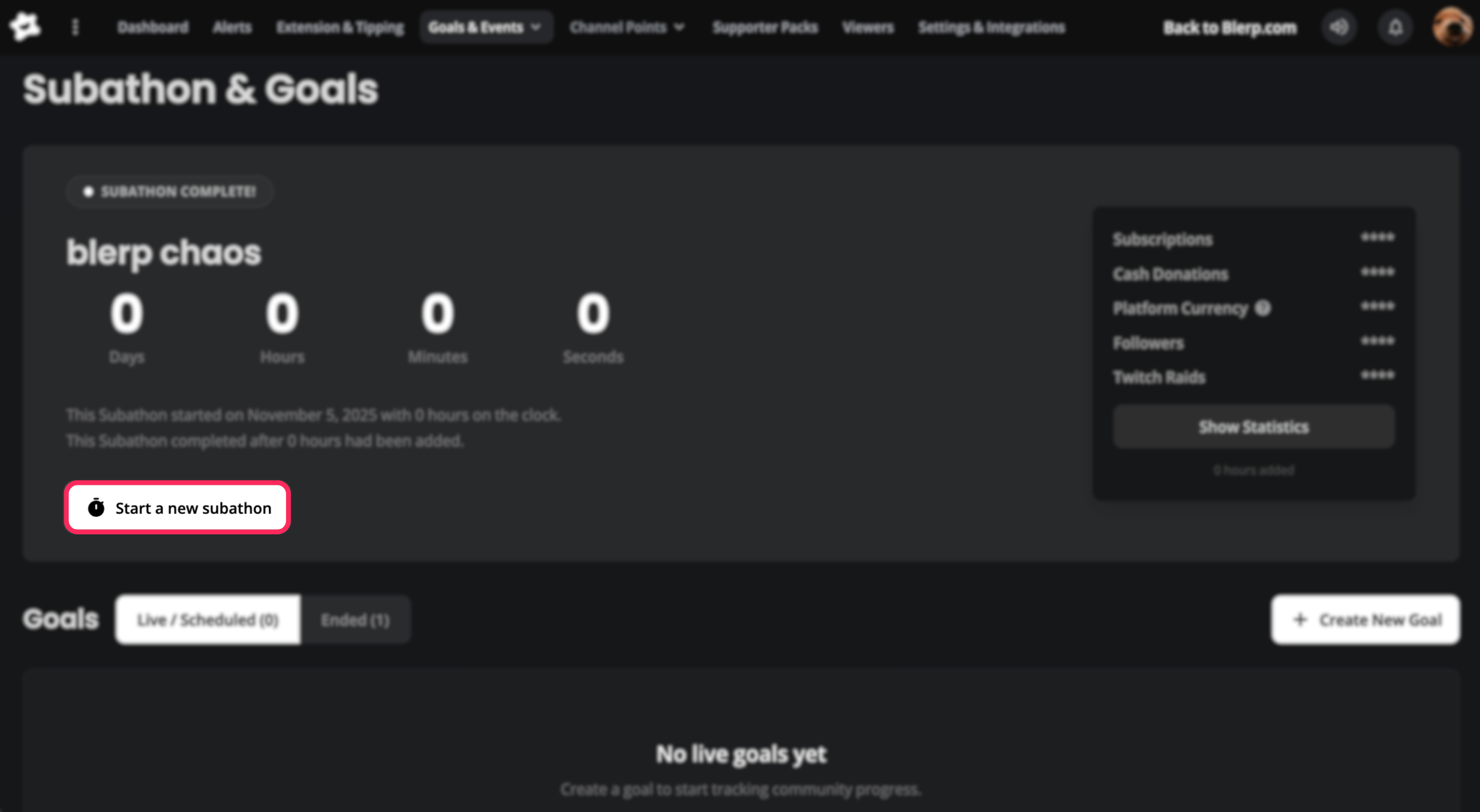
Customize Your Subathon Timer
Blerp gives you complete control over how your subathon works. You can adjust the following settings:
Subathon Title
Give your event a name, like:
24 Hour Challenge
Charity Stream
Road to Partner
Starting Duration
Choose how much time is on the clock when your subathon begins.
For example, you might start with:
1 hour
3 hours
6 hours
This is your starting point before your community begins adding more time.
Timer Additions
This is where you decide which viewer actions increase the timer and how much time each one adds.
For example:
Time added for each new follower
Time added for every subscriber
Time added for each donation
Time added for every raid
For example, you could reward:
Every follow with 30 seconds
Every subscription with 5 minutes
Every donation with 2 minutes
This lets you reward different types of viewer support however you’d like.
Auto Pause & Resume
If you're planning a longer event, enable Auto Pause & Resume.
When this setting is turned on:
The timer automatically pauses when your stream ends.
The timer automatically resumes the next time you go live.
This prevents your countdown from continuing while you're offline.
Subathon Cap
Prevent the timer from running forever by setting a maximum end date and time.
Appearance
Customize the overlay to match your stream by adjusting:
Text color
Background color
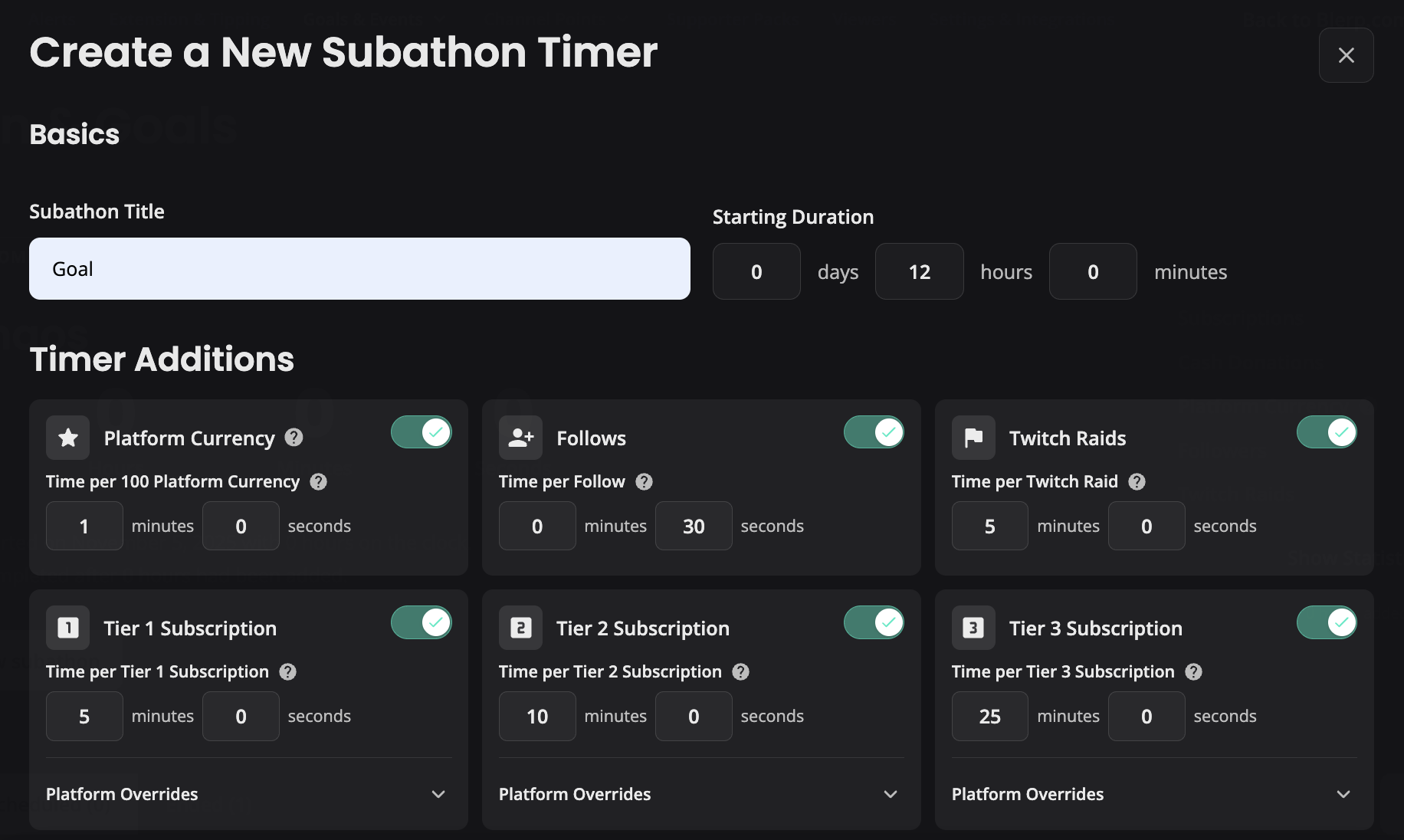
Once you’re happy with your settings, click Create Timer.
Adding a Goal Overlay to your Stream
In addition to your timer, you can display progress bars that track milestones for your community.
Goals give viewers a clear objective to work toward and make every contribution feel like progress toward something bigger.
From the same dashboard, click Create New Goal.
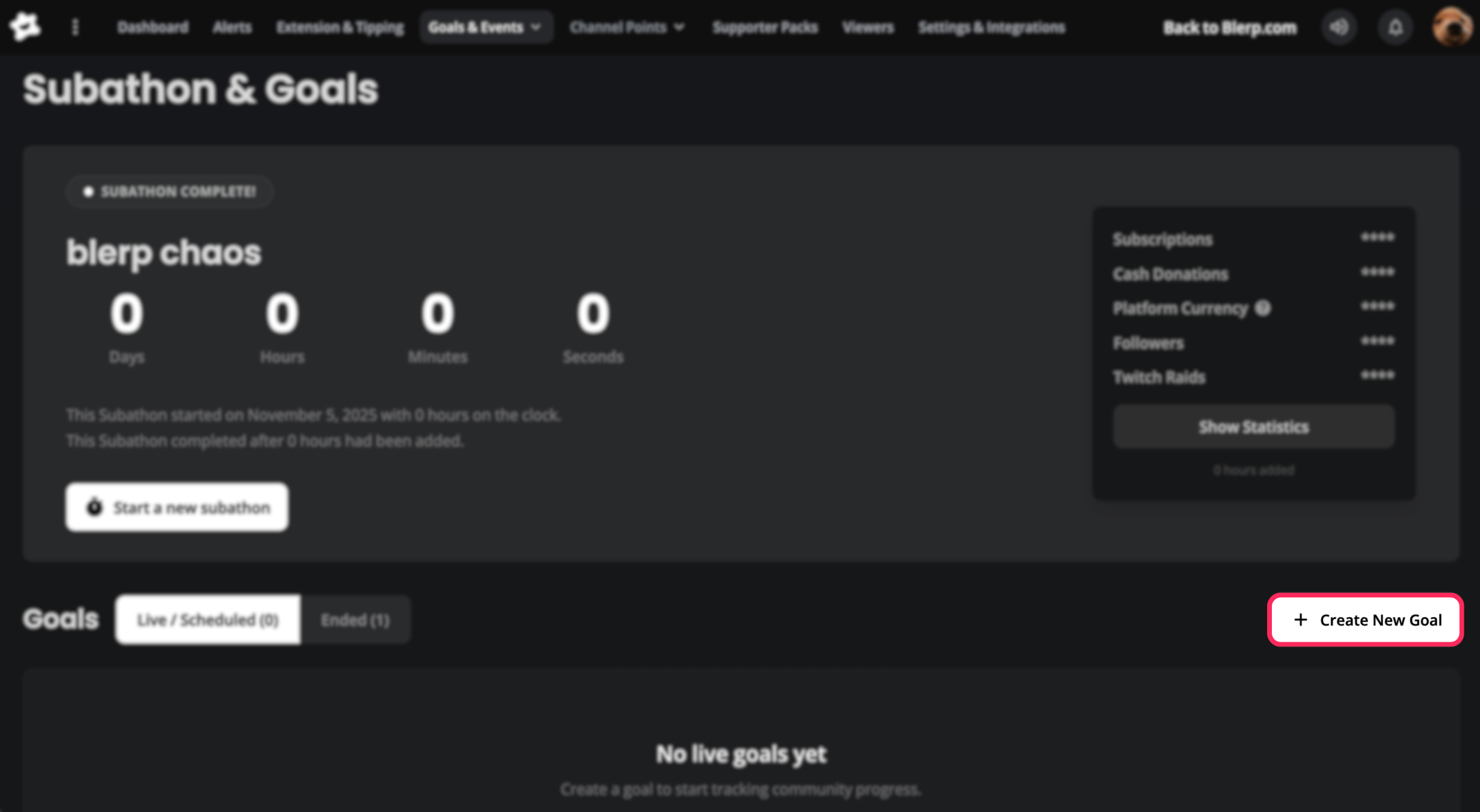
Customize your Goal
Blerp supports several different subathon goal types.
Goal Type
Choose what viewers are working toward. Supported goal types include:
New followers
New subscribers
Platform currency (per 100)
Cash donations
Subscription points
Twitch raids
Choose the option that best matches your stream.
For example, if you're hosting a charity stream, you might create a donation goal. If you're growing your community, a follower or subscriber goal may make more sense.
Platform
Next, select which platform the goal should monitor. Supported platforms are:
Twitch
Kick
Youtube
Rumble
TikTok
PayPal
Goal Title
Create a clear title for viewers, such as:
50 New Followers
Charity Donation Goal
Road to 100 Subs
Target Amount
Enter the total amount needed to complete the goal.
For example:
100 followers
50 subscriptions
$500 in donations
As viewers contribute, the progress bar automatically updates live on your stream.
Milestones
Instead of creating only one large goal, you can break it into multiple milestones.
For example:
25 Followers
50 Followers
75 Followers
100 Followers
Reaching smaller milestones more frequently keeps viewers engaged and gives your community more reasons to celebrate throughout the stream.
Reset & Expiration
Choose what happens after your goal is completed.
You can:
Automatically reset the goal so viewers can complete it again.
Leave it completed permanently.
Set an expiration date for limited-time events.
Pick the option that best matches your stream schedule.
Appearance
Customize your goal overlay by changing:
Background color
Text color
Progress bar color
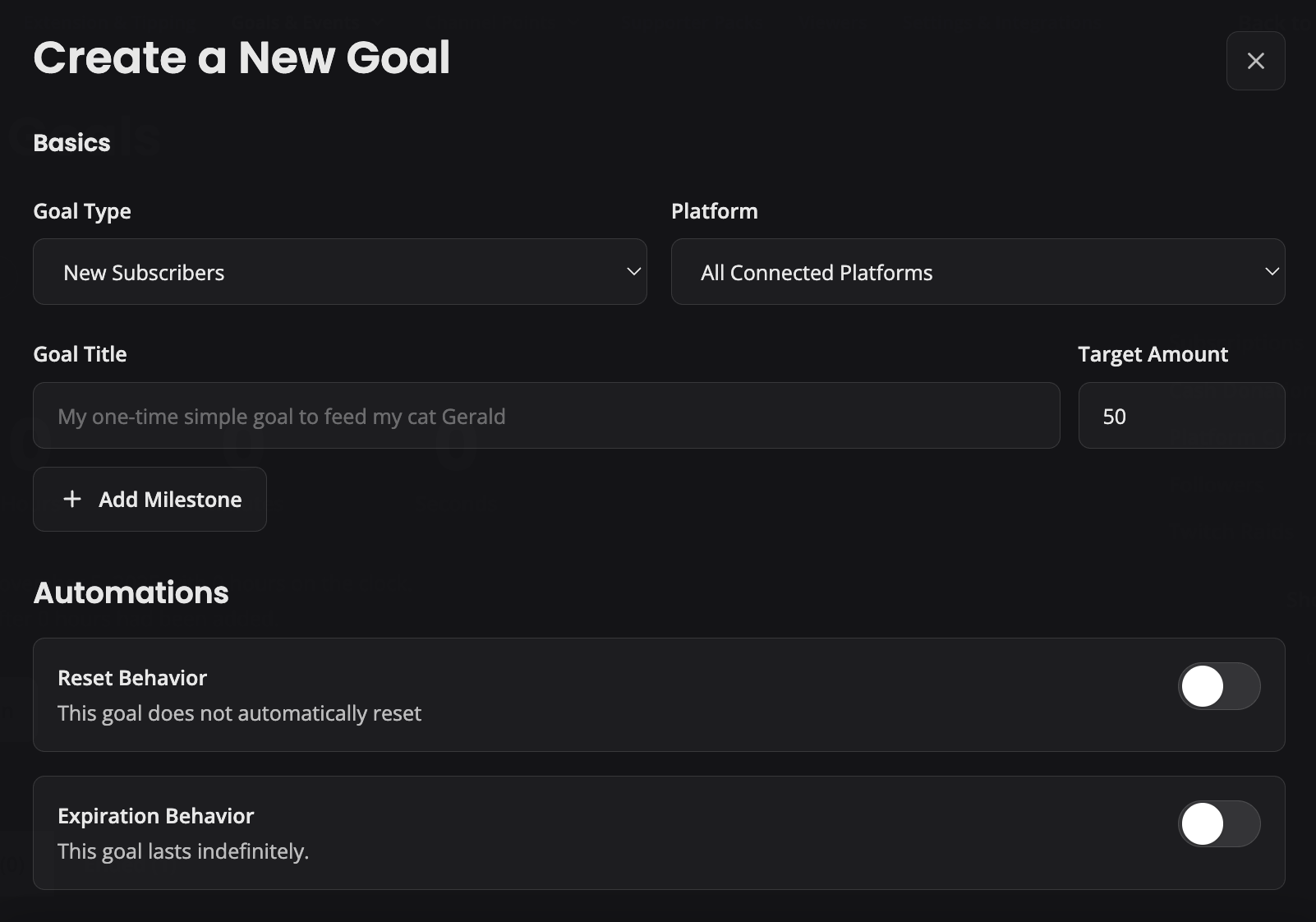
When everything looks right, click Create Goal.